After scanning a vehicle using BlueDriver, the scan results and repair estimate data can appear in three key areas within the vAuto appraisal.
Full PDF Scan Report
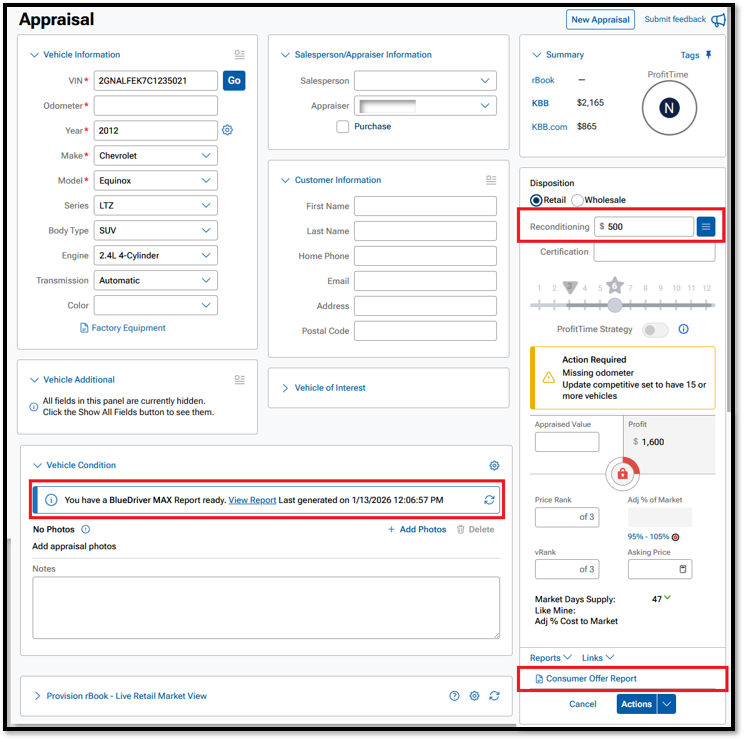
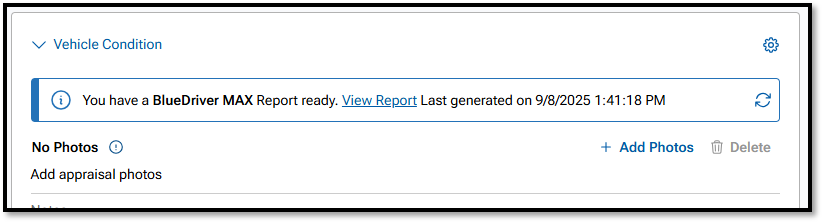
You can access the complete scan report directly from the appraisal.
- Open the existing appraisal or create a new one for the scanned vehicle.
- Scroll down to the Vehicle Condition section.
- If a scan report is available, you'll see a message stating that your report is ready.
- Click on the View Report link to download the full PDF scan report.
⚠️ If you see a "Report not found" message in vAuto, try clicking the Refresh icon at the end of the message to see if the report will load.
Reconditioning Items
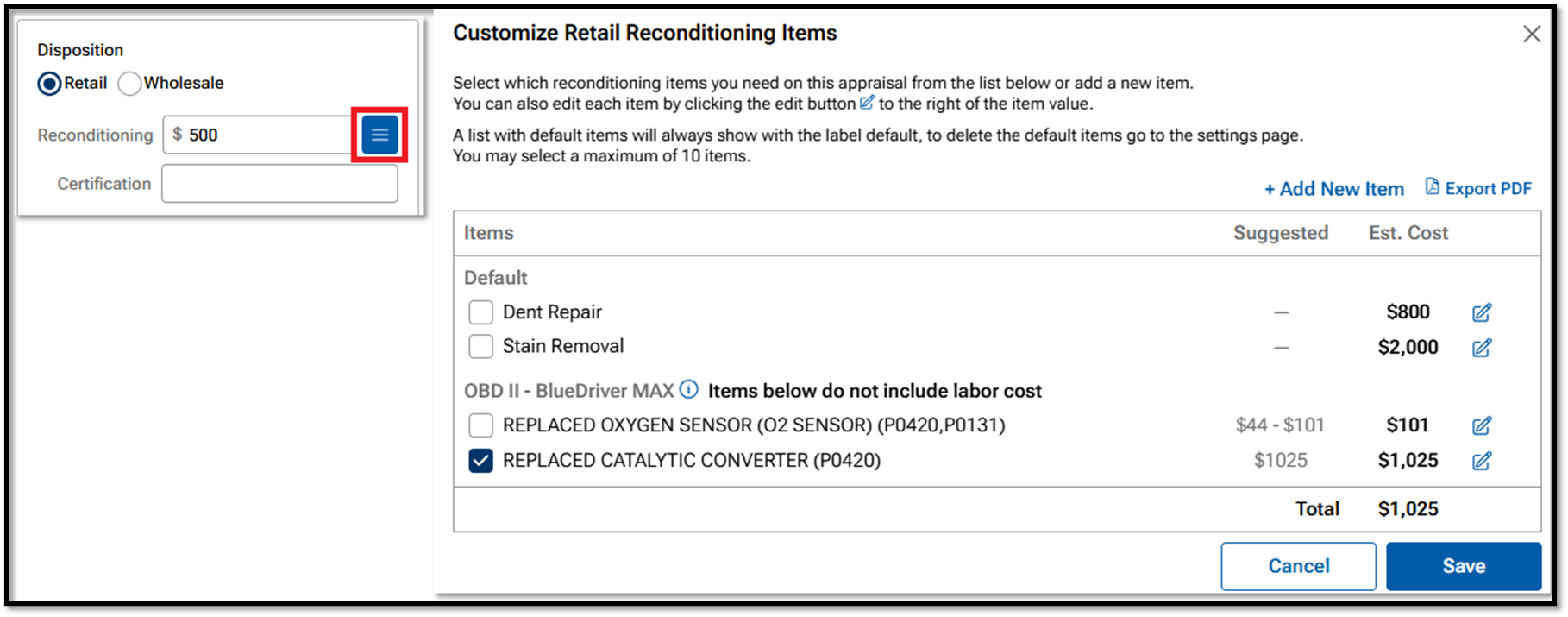
If a scan includes verified repair suggestions and cost estimates, they will appear in the Reconditioning section.
- On the right side of the Appraisal, click on the blue button with the three white lines next to Reconditioning.
- On the Reconditioning Items popup, navigate to the OBII section.
- Review any suggested repairs and estimates from the scan.
- You can include/exclude or edit these items as needed.
⚠️ Only codes that have repair estimates will show up in this section. Codes with no repair estimate data will not display here.
Consumer Offer Report
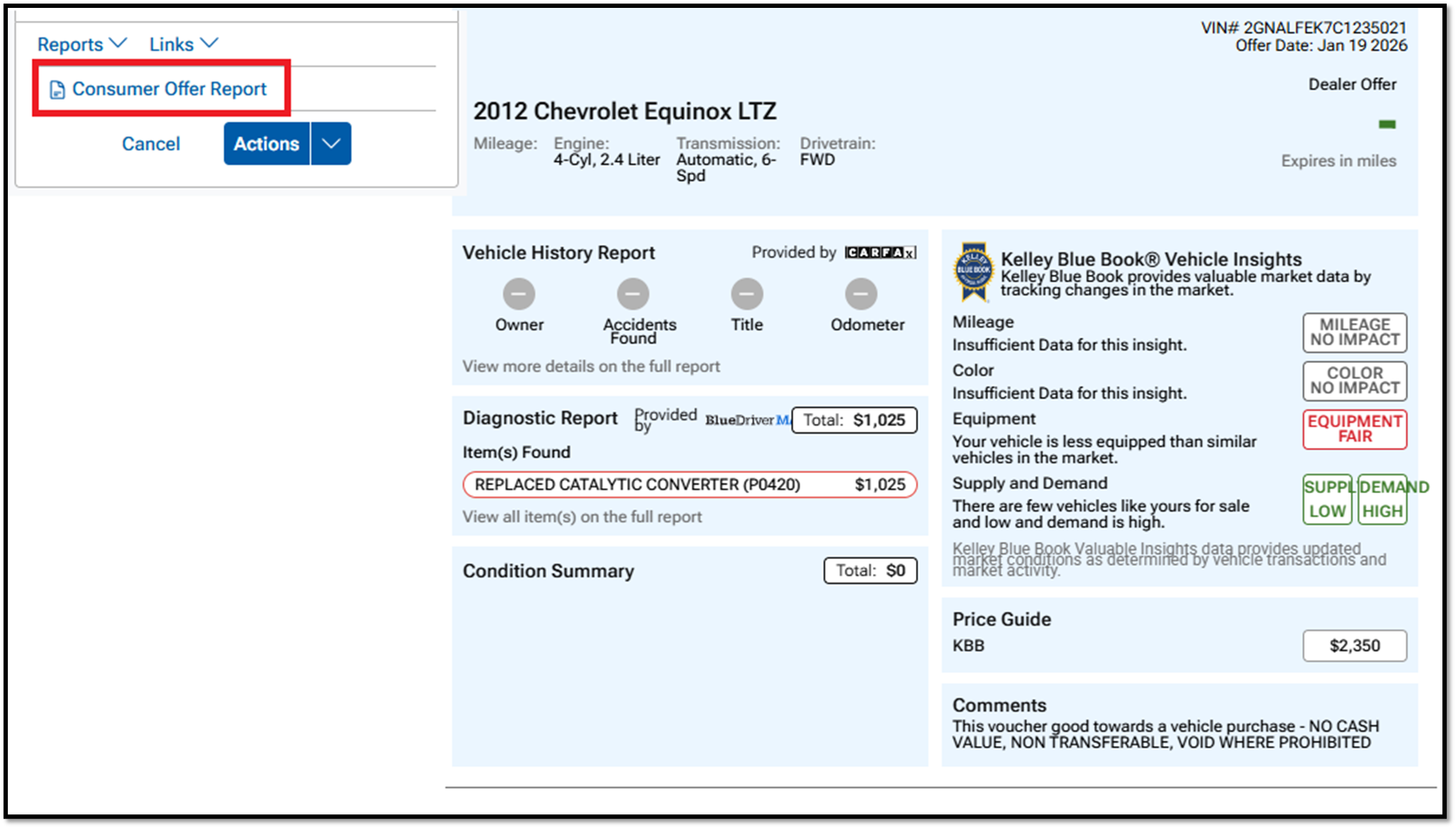
If you've added and saved any repair suggestions from the Reconditing Items section above, then they will also appear on the Consumer Offer Report.
- Open appraisal of the vehicle.
- Above the Actions button, click on the Consumer Offer Report.
- Make the needed selections and generate the report.
- Saved repair suggestions will be listed under the Diagnostic Report section.
Having trouble accessing BlueDriver Scan results in vAuto? Check out this page: Report not Found in vAuto
Was this article helpful?
That’s Great!
Thank you for your feedback
Sorry! We couldn't be helpful
Thank you for your feedback
Feedback sent
We appreciate your effort and will try to fix the article