Running scans on the BlueDriver app is a simple process. Below are a walkthrough and best practices for scanning vehicles.
Read Codes
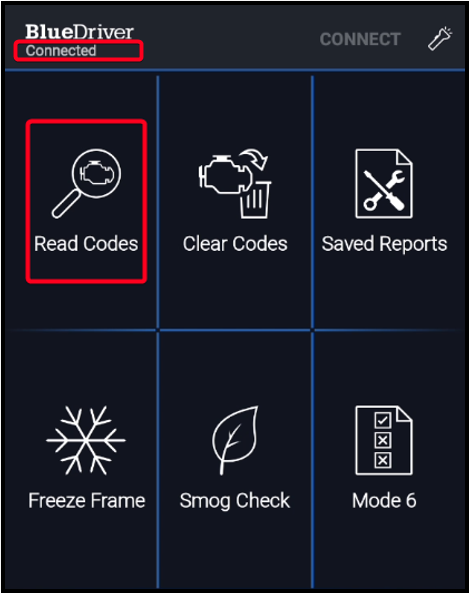
Ensure that your scanner is connected to your mobile app.
Tap Read Codes
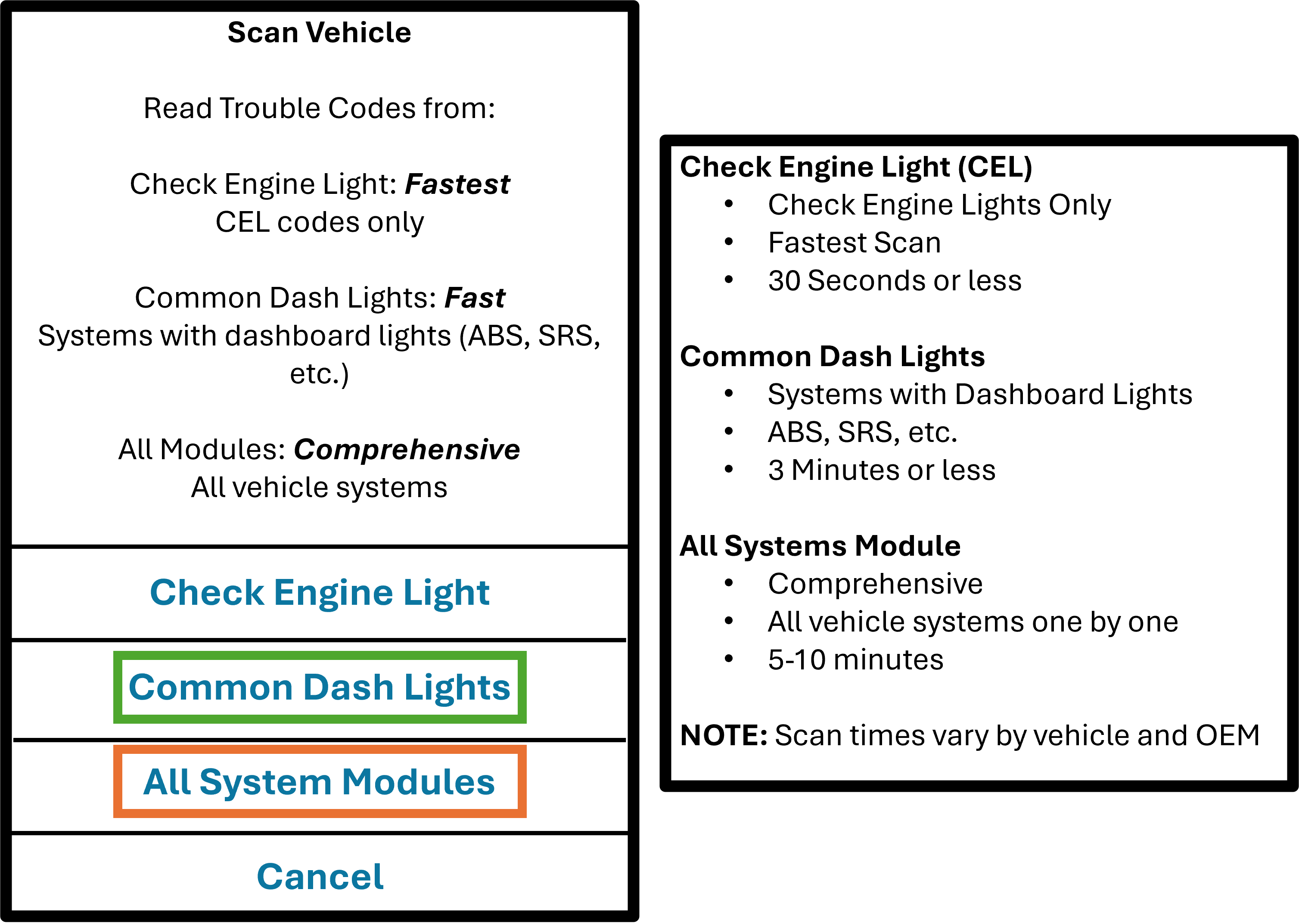
Choose Scan Type
In most cases we recommend the Common Dash Lights scan type, which offers sufficient information to diagnose dashboard warning lights and provide repair estimates.
The All Systems Module scan type will wake every module on the vehicle and check them one by one. This will include items pertaining to HVAC, stereo, and emissions related equipment; that there is little no repair data or estimates for. This comprehensive scan will take longer depending on the vehicle’s OEM. We only recommend using this for older vehicles with high mileage.
Read Scan Results
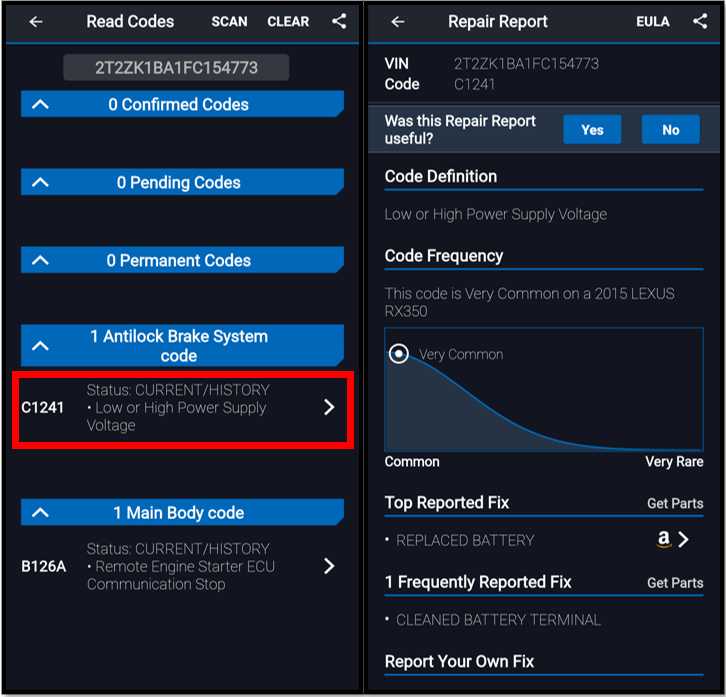
Once the scan is 100% complete, you can access the results and interact with each code.
Tapping into a code will open more details about it.
Share Repair Scan Report
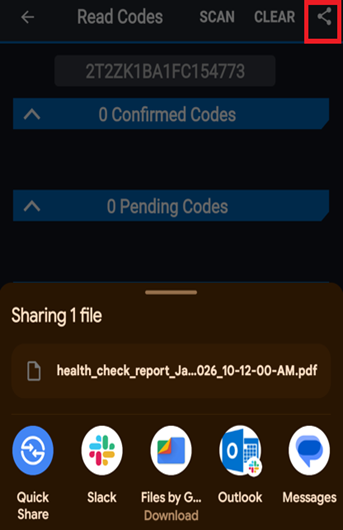
You can share the Repair Scan Report PDF directly from the app.
Click on the Share button to download, email, text, etc. the report as needed.
If you are integrating BlueDriver MAX with vAuto, then the Repair Scan Report will also be available within the vAuto Appraisals.Was this article helpful?
That’s Great!
Thank you for your feedback
Sorry! We couldn't be helpful
Thank you for your feedback
Feedback sent
We appreciate your effort and will try to fix the article