Here we are going to go over how to setup your BlueDriver account within vAuto.
⚠️ Note: these steps must be completed by ALL users who will be using the BlueDriver MAX scanners.
Step 1: Prepare Your BlueDriver Account
✅ Make sure you have downloaded and created an account in the BlueDriver app.
Step 2: Connect BlueDriver to vAuto
- Log into vAuto.
- Click the Gear icon (⚙️) on the top-right corner.
- Select General Settings.
⚠️ If you don’t see “General Settings,” you likely don’t have Admin access. Please contact your dealership’s vAuto Admin or your vAuto Performance Manager.
- Under the Appraising section, click OBD II.
- From the dropdown menu, select BlueDriver MAX.
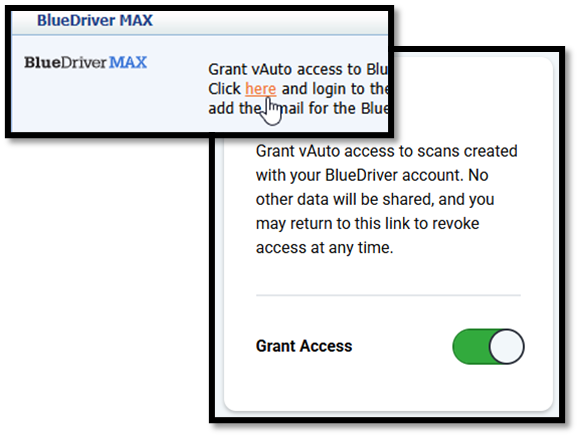
- Click the link that says: “Click here and login to the BlueDriver MAX account…”
- Log in using the same email and password from your BlueDriver mobile app.
- Flip the switch to grant vAuto access to your scan data.
Step 3: Finalize Setup
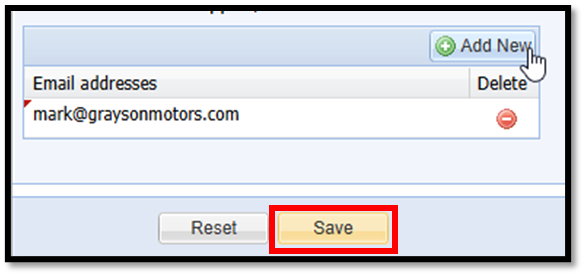
- Return to the OBD II page in vAuto.
- Click Add New.
- Enter the same email address used in your BlueDriver app.
- Click Save.
Tips for Success
- Use the same email address across both platforms.
- Make sure your BlueDriver app is updated to the latest version.
- If you run into issues, your vAuto Performance Manager is your best resource.
Was this article helpful?
That’s Great!
Thank you for your feedback
Sorry! We couldn't be helpful
Thank you for your feedback
Feedback sent
We appreciate your effort and will try to fix the article