Before using BlueDriver or integrating with vAuto, you’ll need to create an account in the BlueDriver mobile app.
⚠️ Important:
Use your company or dealership email address when signing up. This email will be tied to your scan data and must match the email in vAuto when setting up. Avoid using personal email addresses.
Download the BlueDriver App
- Download the BlueDriver OBD2 Scan Tool app.
 |  |
Step-by-Step Instructions
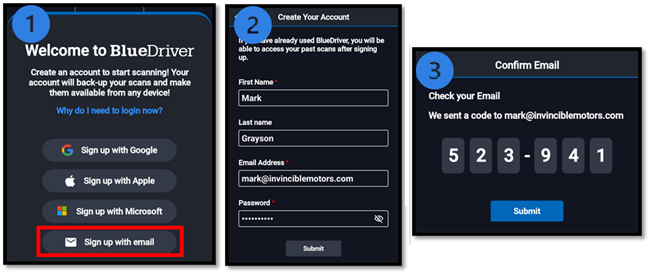
- Open the BlueDriver mobile app.
- Tap “Sign up with email.”
- Enter your details (name, email, password) and tap Submit.
- Check your email inbox for a verification code.
- Enter the code into the app and tap Submit.
Password Requirements
Your password must:
- Be at least 8 characters long
- Include at least 1 capital letter
- Include at least 1 special character:
()<>?!@
Additional Help
- Use a consistent email across BlueDriver and vAuto.
- If you don’t receive the verification code, check your spam/junk folder.
- Make sure your app is updated to the latest version.
Video Walkthrough
Was this article helpful?
That’s Great!
Thank you for your feedback
Sorry! We couldn't be helpful
Thank you for your feedback
Feedback sent
We appreciate your effort and will try to fix the article