Grant vAuto access to the scans you’ve taken using BlueDriver MAX:
- Access Repair Report from vAuto Appraisals.
- Access repair results within the vAuto Reconditing Items.
- Access repair results within the vAuto Consumer Offer Report.
The vAuto setup just has to be done once for your dealership.
The BlueDriver onboarding team will work with the dealership Admin to get this setup.
Access the vAuto Settings Page
- Log into vAuto.
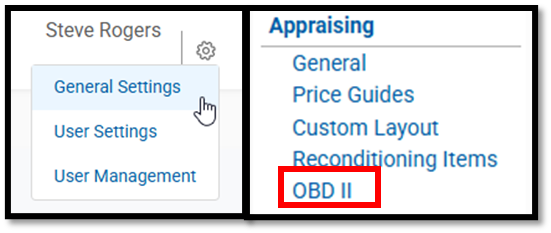
- Click the Gear icon (⚙️) on the top-right corner.
- Select General Settings.
- ⚠️ If you don’t see “General Settings,” you likely don’t have Admin access. Please contact your dealership’s vAuto Admin or your vAuto Performance Manager.
- Under the Appraising section, click OBD II.
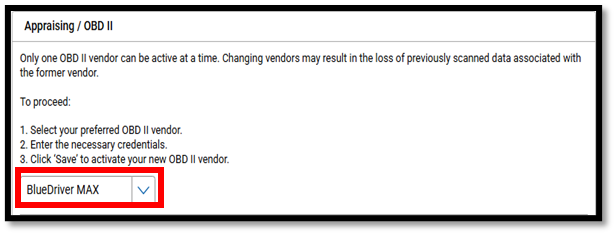
- From the dropdown menu, select BlueDriver MAX.
Enter Authorization Token
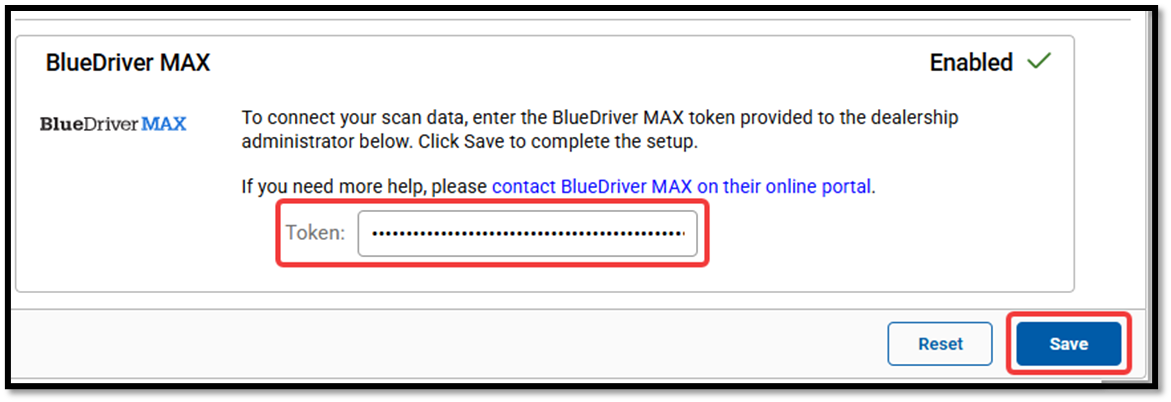
- Copy and paste the special Authorization token for your dealership provided by the BlueDriver MAX team.
- Click Save
If your dealership is missing the Token in vAuto, please contact our Support team and let us know.
Was this article helpful?
That’s Great!
Thank you for your feedback
Sorry! We couldn't be helpful
Thank you for your feedback
Feedback sent
We appreciate your effort and will try to fix the article