You can connect your scanner for the first time to your phone directly from the BlueDriver app.
Once connected successfully, you can just plug the scanner to any vehicle and start to run scans.
- Ensure that the vehicle is on and running.
- Do NOT plug the scanner into the vehicle yet!
- Open the BlueDriver mobile app.
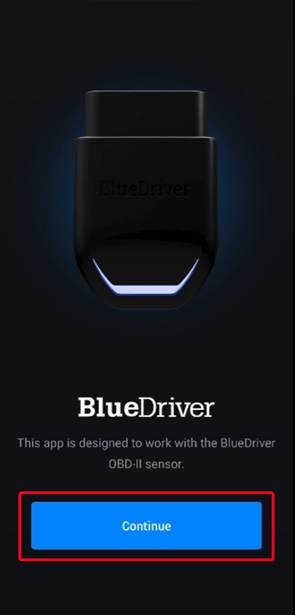
- Tap Continue
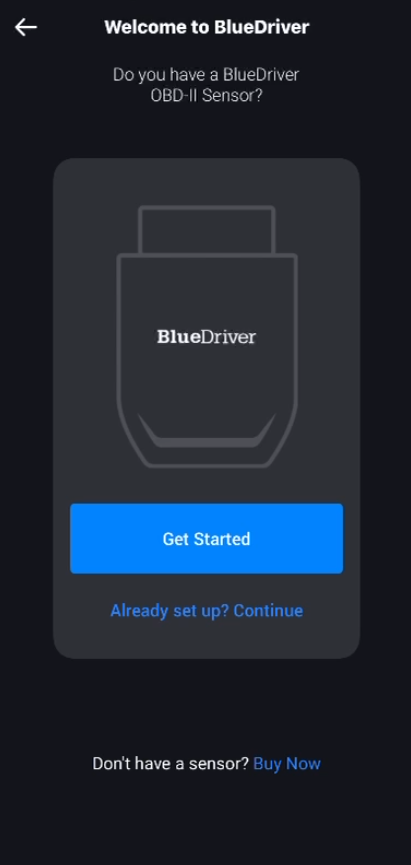
- Tap Get Started
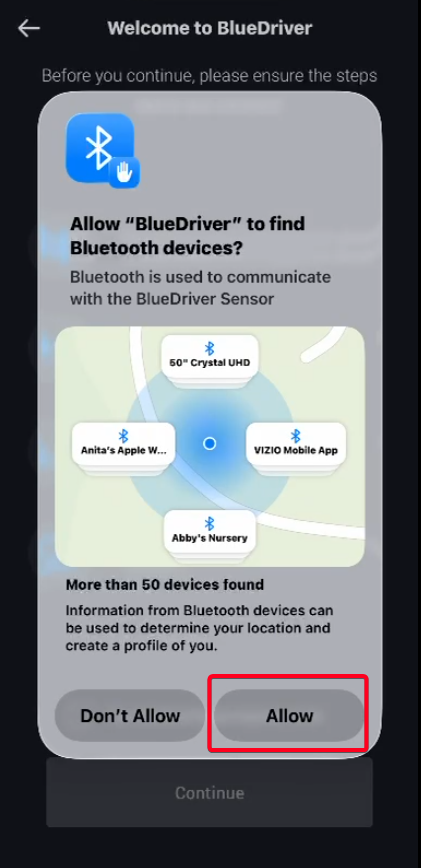
- Tap Allow to allow BlueDriver to find Bluetooth devices
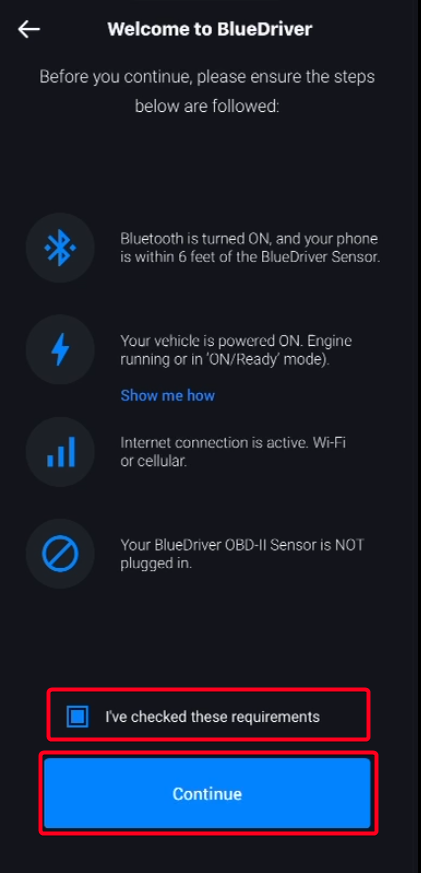
- Check each requirement and tap Continue
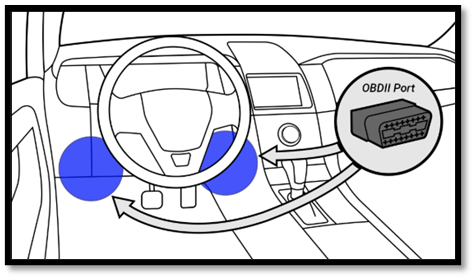
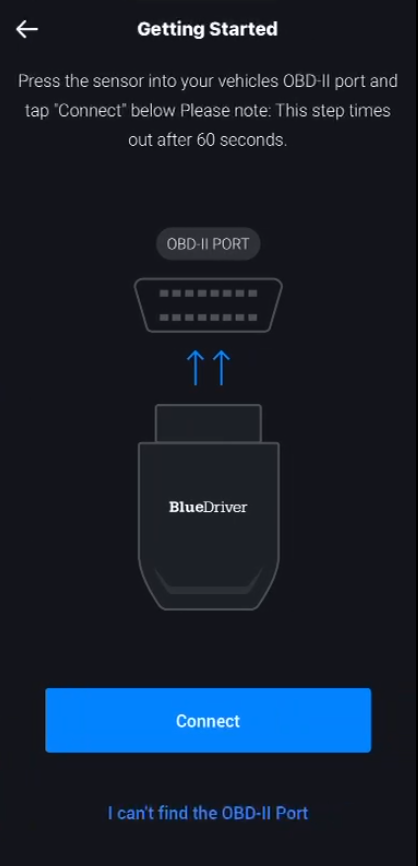
- Plug the scanner into the OBD2 port of the running vehicle
- Tap Connect
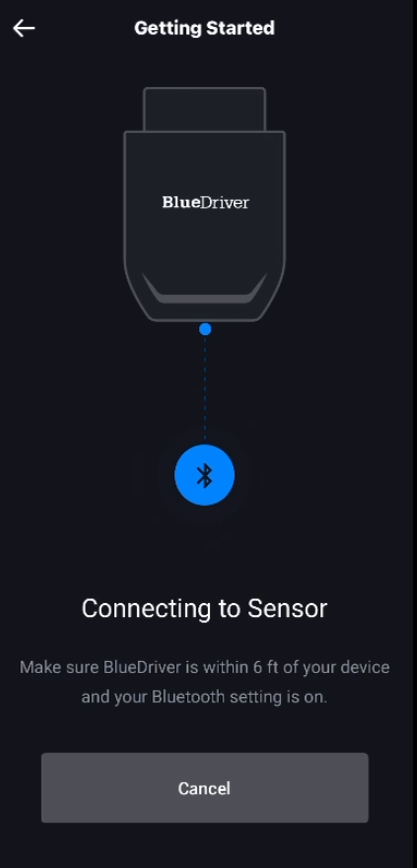
- BlueDriver will look for and connect to the scanner
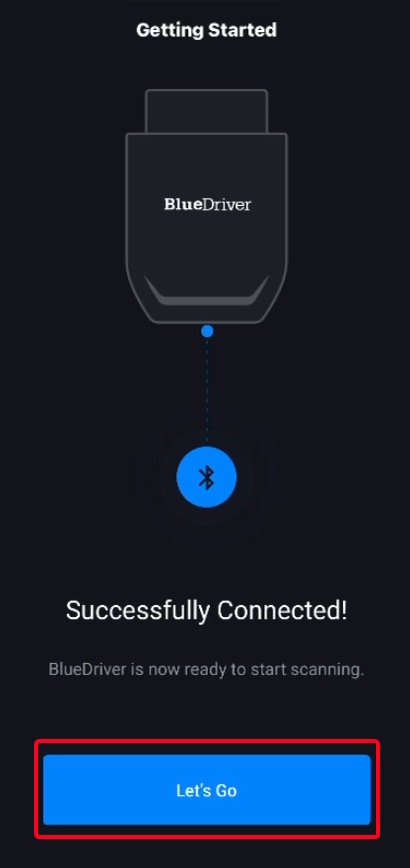
- Once connection is successful, tap Let’s Go
Once you have successfully connected your scanner to your phone, you can start to scan vehicles right away.
For assistance on how to run scans, check out this article: How to Run Scans.
Was this article helpful?
That’s Great!
Thank you for your feedback
Sorry! We couldn't be helpful
Thank you for your feedback
Feedback sent
We appreciate your effort and will try to fix the article